Clean, crop and prepare a scanned stamp image
Got a photo or scan of a physical stamp? The image tools turn it into a clean, transparent PNG you can drop onto documents. Each tool does one job and previews the result live as you adjust the controls — there’s no “apply” button to hunt for. Everything runs in your browser.

Which tool for which job
The six tools
- Clean uploaded stamp
- Remove a white background and recolour the ink — best for scans on white paper.
- Extract stamp by colour
- Keep only the ink near a chosen colour and clear the rest — good for a coloured seal on a busy page.
- Crop stamp
- Draw a round, square or rectangle frame and keep only what’s inside.
- Resize stamp
- Scale to exact pixel dimensions.
- Rotate stamp
- Turn to any angle, with the canvas expanded so corners aren’t clipped.
- Add background
- Place a solid colour behind a transparent stamp.
A typical clean-up flow
- 1
Start with Clean
Open Clean uploaded stamp and upload your scan. Raise the white-threshold slider until the paper background disappears and only the ink remains. Pick an ink colour if you want to standardise it.
- 2
Crop tight
Switch to Crop. Choose Round for a circular seal, then drag the frame over the stamp and size it with the corner handle or the sliders. A tight crop keeps the file small and centres the seal.
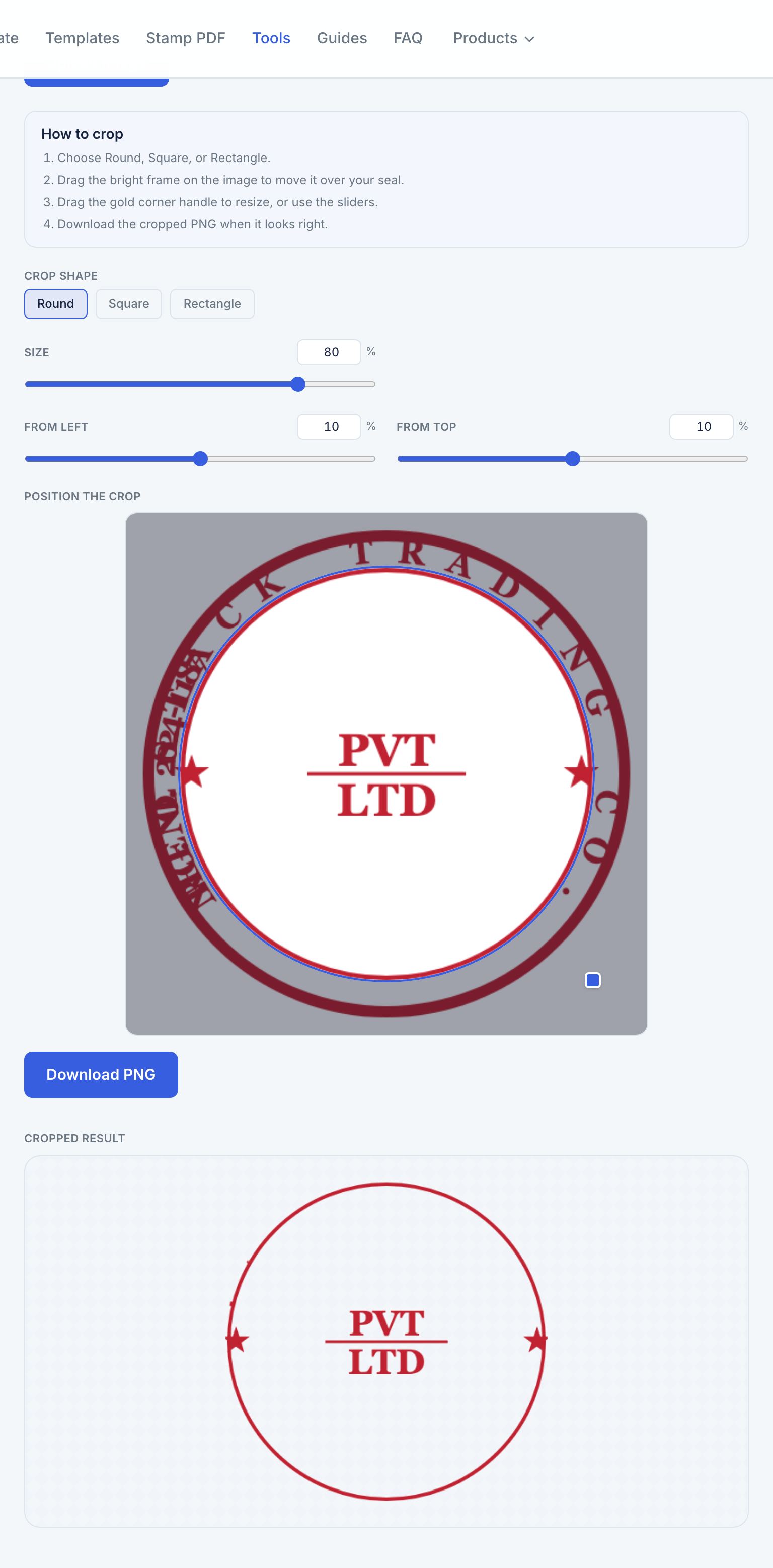
Crop supports round, square and rectangle frames — drag to move, corner-handle to size. - 3
Resize if needed
If a document needs an exact pixel size, use Resize to set width and height precisely.
- 4
Download the PNG
Each tool exports a transparent PNG. That file is ready for Stamp PDF or any document.
Extract vs. Clean
Use Clean when the background is plain white. Use Extract when the seal sits on printed text or a coloured form — it isolates the ink by colour instead of by brightness.
When to add a background
A transparent stamp is best for most documents, but if you’re placing a light-ink seal on a dark page, Add background gives it a solid card so it stays legible.
Frequently asked questions
Clean or Extract — which should I use?
Clean for white paper scans. Extract when the seal sits on printed text or a coloured form and you need colour-based isolation.
Does crop support round seals?
Yes. Choose Round, Square or Rectangle, drag the frame, then download a transparent PNG.
In what order should I clean a scanned stamp?
Straighten with Rotate if needed, Clean or Extract the ink, Crop tight, then Resize only if a portal needs exact pixels.
Do the tools add a watermark?
No. Each tool exports a plain PNG with no Nelstack branding.
Can I use a cleaned stamp in Sign PDF?
Yes. Download the PNG, then upload it into Sign PDF’s Stamp or Image field, or place it with Stamp PDF.
Keep learning
- Stamp a PDF: place, resize, rotate and apply to every pageUpload a PDF and seal image, place and rotate the stamp, apply it to every page, and download — privately in your browser.
- Stamp Maker in 5 minutes: a guided tourLearn Stamp Maker in minutes: templates, stamp editor, Stamp PDF and image tools. Free, private and browser-based — no signup.
- Create a simple round company seal from scratchStep-by-step: build a single-ring round company seal from scratch with curved text, centre line, ink colour and transparent PNG export.