Stamp a PDF: place, resize, rotate and apply to every page
Once you have a stamp image, Stamp PDF puts it onto real paperwork. Pages are designed to open and edit in your browser for the primary stamp/download path — see the Privacy page for contact forms and analytics.
Before you start
You’ll need two things: the PDF you want to stamp, and a stamp image (a transparent PNG works best). No stamp yet? Make one in the editor, or open a template and download it first.
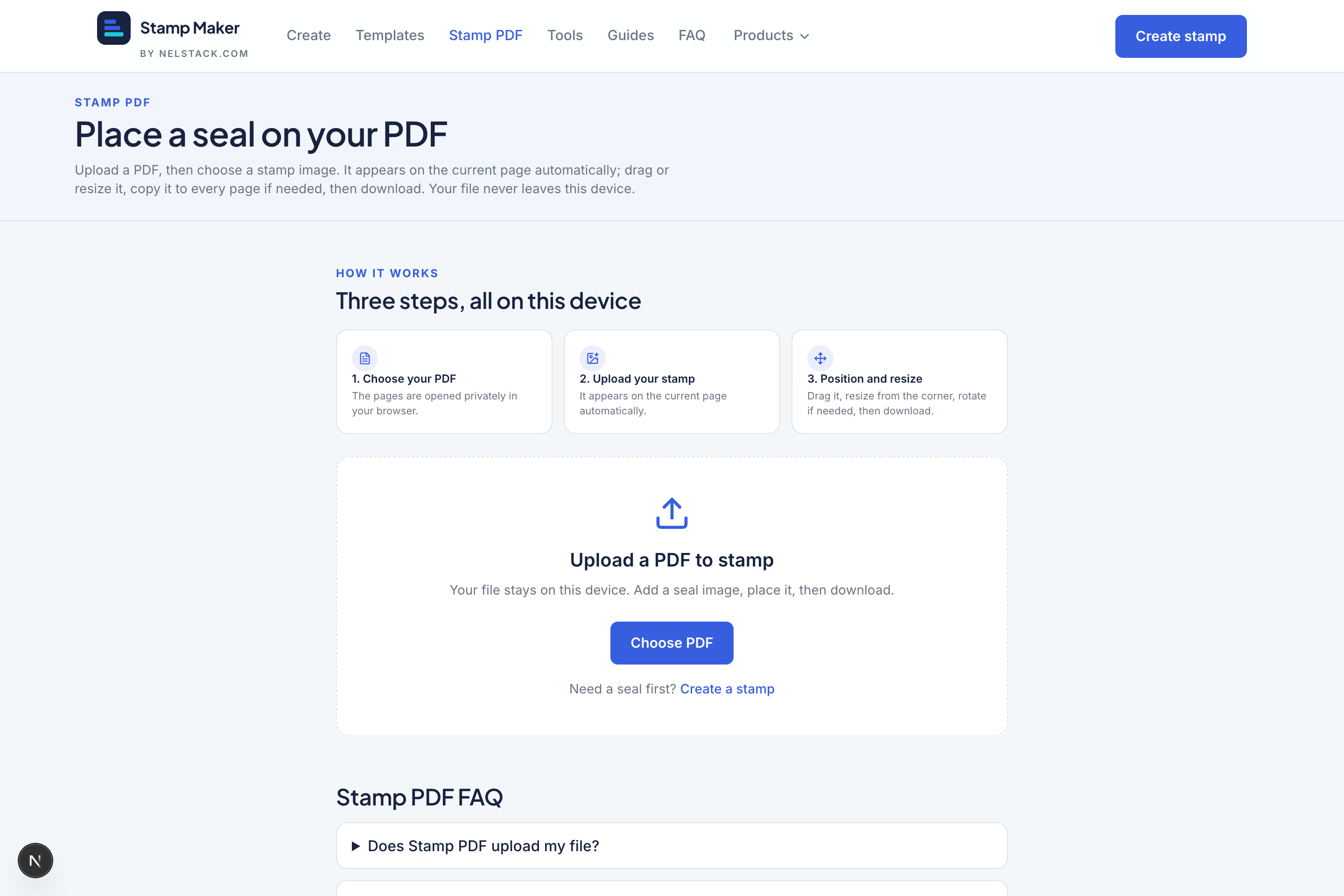
The flow
- 1
Choose your PDF
Upload the PDF. Its pages render as a scrollable strip on the left so you can jump to any page.
- 2
Upload your stamp
Upload the seal image. It appears on the current page automatically — no separate “place” step needed. PNG, JPEG and WebP are all accepted and normalised so the preview matches the download exactly.
- 3
Position and resize
Drag the stamp to move it. Drag the gold corner handle to resize. The round shape stays round — no oval distortion between preview and export.
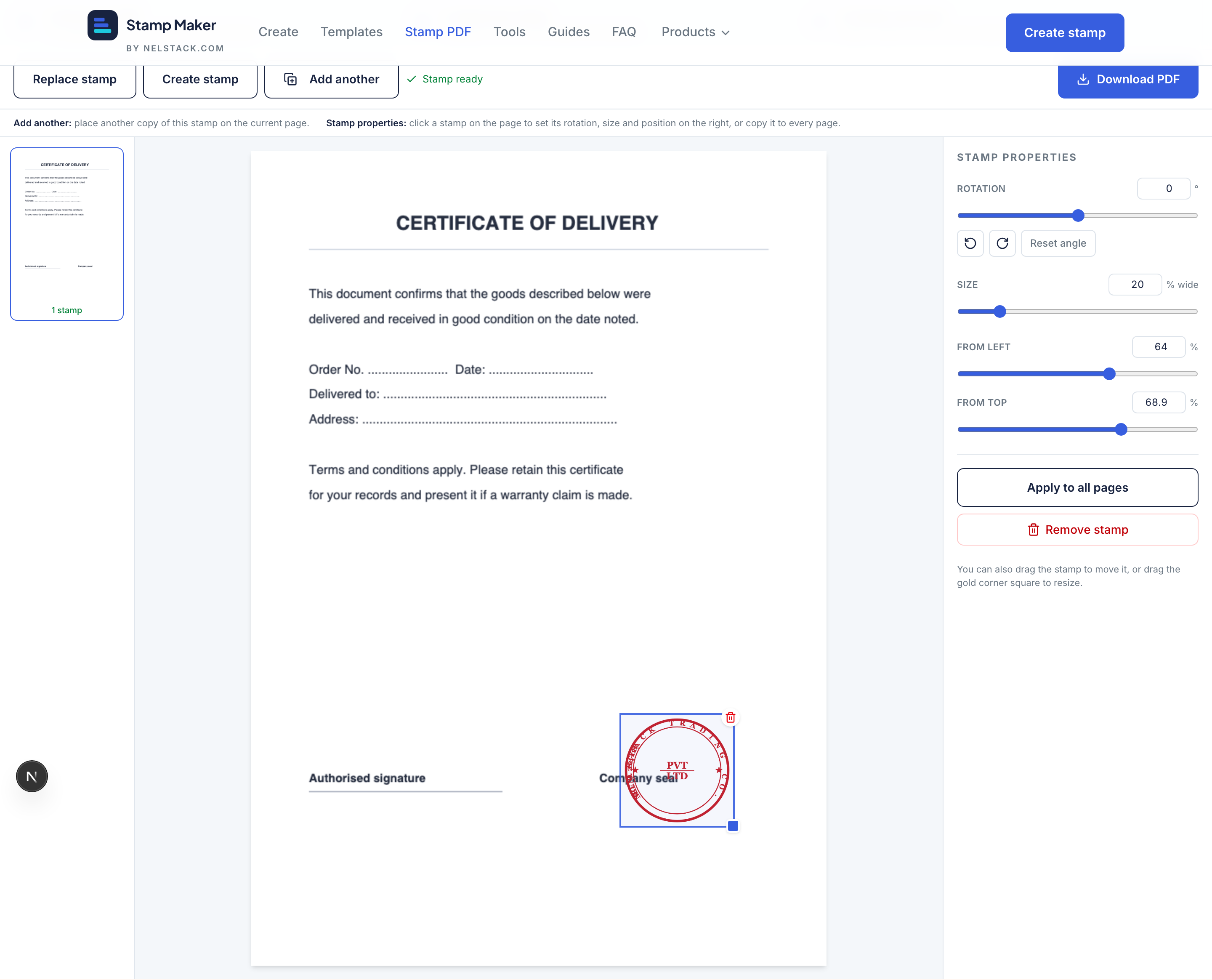
Select a stamp to reveal the properties panel: rotation, exact size and position. - 4
Rotate precisely
With the stamp selected, use the Rotation control in the right-hand properties panel — a slider for fine angles, ±90° buttons, and Reset. Preview and the downloaded PDF match exactly.
- 5
Apply to all pages
Need the same seal on every page? Select it and choose “Apply to all pages” — it copies to every other page at the same position and angle. Use “Add another” to place a second copy on the current page.
- 6
Download
Press Download PDF. The stamped file saves straight to your device.
Select vs. deselect
Click a stamp to select it (you’ll see the border, resize handle and properties). Click empty page space to deselect — that’s also how you preview exactly how the page will look once downloaded.
Exact placement
The properties panel takes exact numbers for size and position (as a percentage of the page), so you can line a seal up in precisely the same spot across many documents.
Frequently asked questions
Why does my round stamp look oval in the download?
Stamp PDF keeps aspect ratio between preview and export. Use a square/transparent PNG of a round seal for best results.
Can I put the same stamp on every page?
Yes. Select the stamp and choose Apply to all pages — copies keep the same position, size and rotation.
Does Stamp PDF require an account?
No. Upload, place and download are free with no signup.
Can I use more than one stamp image on a PDF?
Yes. Add another stamp for a second seal — each placement keeps its own image.
How do I preview the final page without handles?
Click empty page space to deselect the stamp so selection chrome hides and the page matches the download.
Keep learning
- Stamp Maker in 5 minutes: a guided tourLearn Stamp Maker in minutes: templates, stamp editor, Stamp PDF and image tools. Free, private and browser-based — no signup.
- Clean, crop and prepare a scanned stamp imageUse Stamp Maker tools to clean, extract, crop, resize, rotate or add a background to a scanned seal — live preview, PNG download.
- Find a template and customise itBrowse 100+ free stamp templates across 15 categories. Open any seal, edit text and ink, then download PNG or SVG privately.