Sign PDF field types explained (with examples)
Every Sign PDF field is a typed box on the page with shared controls (size, rotation, colour) plus type-specific behaviour. This is the reference for all ten types, with practical examples for common documents.
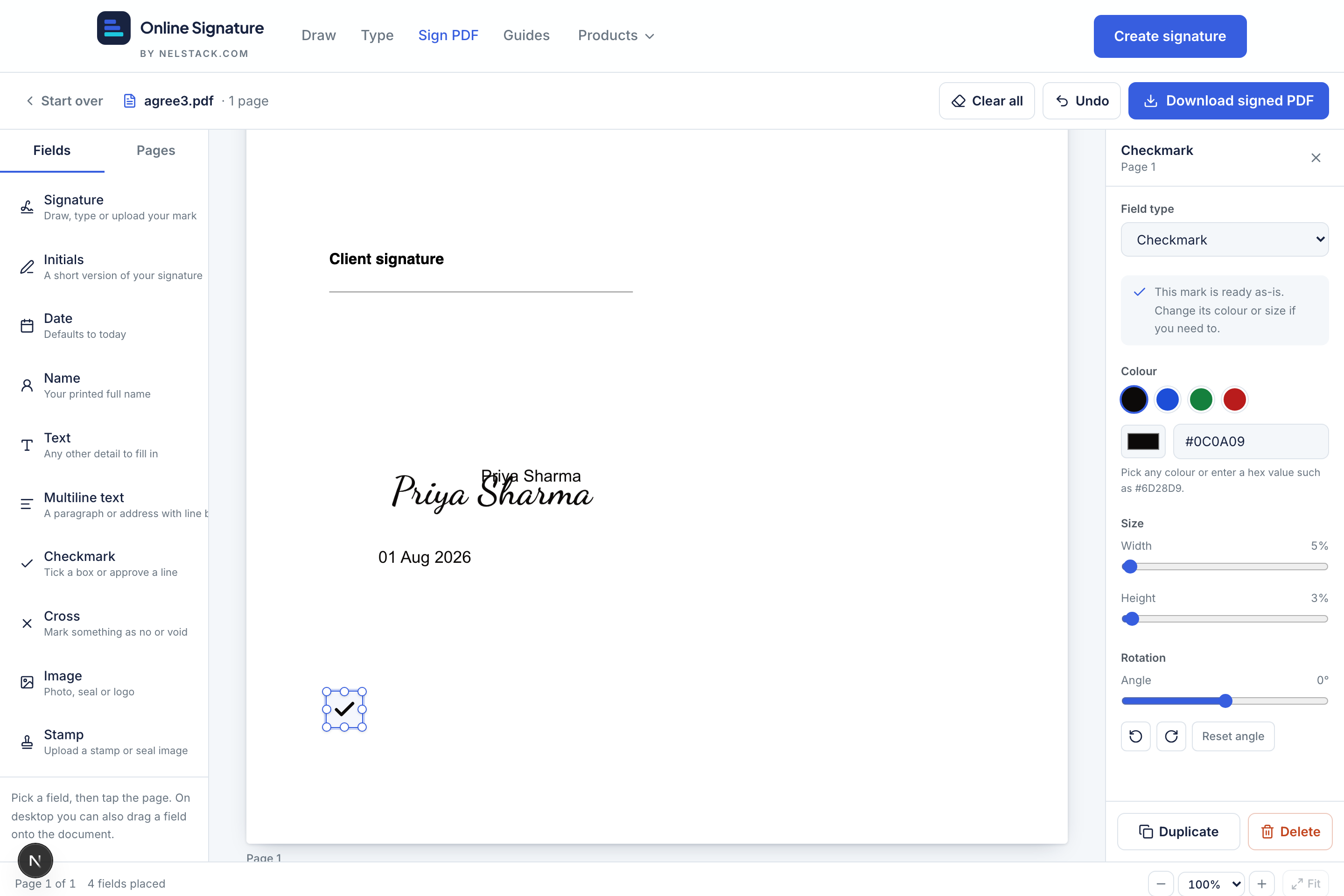
Signature and initials
Signature opens the capture modal (Type / Draw / Upload) and stores a PNG on the field. Initials works the same way with a smaller default box — ideal for multi-page initialling. Switching between Signature and Initials keeps the captured image when possible.
- Example — offer letter: Signature on the last page; Initials on every annexure page.
- Example — rent agreement: One Signature for the landlord and another for the tenant (place two Signature fields; capture each mark separately).
Date, name, text and multiline
Text-style fields
- Date
- Defaults to today’s date (readable format). Edit in the panel or on the page.
- Name
- Printed full name — single line.
- Text
- Any short detail (employee ID, city, designation).
- Multiline text
- Paragraphs and addresses with line breaks; wraps in the preview and the flattened PDF.
For Name, Text and Multiline: if the field is empty and selected, start typing immediately. If it already has content, press Enter or double-click to edit. Font family and font size (6–72 pt) live in the properties panel. Colour uses presets plus a full colour picker and hex input.
- Example — delivery note: Date + Name of receiver + Multiline address.
- Example — HR form: Text fields for employee code and department; Multiline for remarks.
Checkmark and cross
Checkmark and Cross are marks — they count as complete as soon as you place them. Use them for yes/no boxes, “void” lines, or approval ticks. Resize and recolour like any other field; rotation helps when a printed box is skewed on a scan.
Image and stamp
Image and Stamp open an upload-only capture (PNG/JPG, max 2 MB). Stamp Maker is linked for creating a seal first. After upload, resize and rotate exactly like a signature. Stamps are ideal for company seals; Image suits photos, logos or letterheads.
Colour vs image fields
Ink colour applies to text and marks. Signature/initials use the colour from capture. Image and Stamp keep the uploaded pixels — recolour those in Stamp Maker tools if needed before upload.
Shared properties on every field
Width (% of page), height (% of page), rotation (−180° to 180° with ±90° buttons), Duplicate and Delete are available for all types in the right-hand panel.
Frequently asked questions
How many field types does Sign PDF have?
Ten: Signature, Initials, Date, Name, Text, Multiline text, Checkmark, Cross, Image and Stamp.
Can I change a field’s type after placing it?
Yes. Select the field and use Change type in the properties panel. Position and colour are kept; size and value reset to the new type’s defaults.
Which fonts can text fields use?
Standard PDF fonts: Helvetica, Helvetica Bold, Times Roman, Times Bold, Courier and Courier Bold, with sizes from 6 to 72 pt.
When should I use Stamp instead of Signature?
Use Signature for a personal handwritten mark. Use Stamp for a company seal or office rubber-stamp look — upload a PNG from Stamp Maker or a cleaned scan.
Can I put Initials on every page of an agreement?
Yes. Place one Initials field, capture the mark, then Duplicate and drag copies onto other pages, or place fresh Initials fields page by page.
Keep learning
- How to sign a PDF online free — complete Sign PDF walkthroughSign a PDF in your browser: upload (up to 15 MB), place signature and fields, capture your mark, download a flattened PDF. Private, free, no signup.
- Capture a signature for PDF: type, draw, upload and saved marksHow the Sign PDF capture modal works: type with 14 fonts, draw on a pad, upload PNG/JPG, and reuse up to six saved signatures stored on your device.
- Move, resize, rotate and edit fields on a PDFMaster Sign PDF placement: drag and drop fields, eight resize handles, rotation, arrow-key nudge, undo, zoom, select/deselect and inline text editing.