Move, resize, rotate and edit fields on a PDF
Accurate placement is what makes a signed PDF look intentional. This guide covers every interaction: arming fields, dragging, resizing, rotating, nudging, zooming and editing text without fighting the UI.
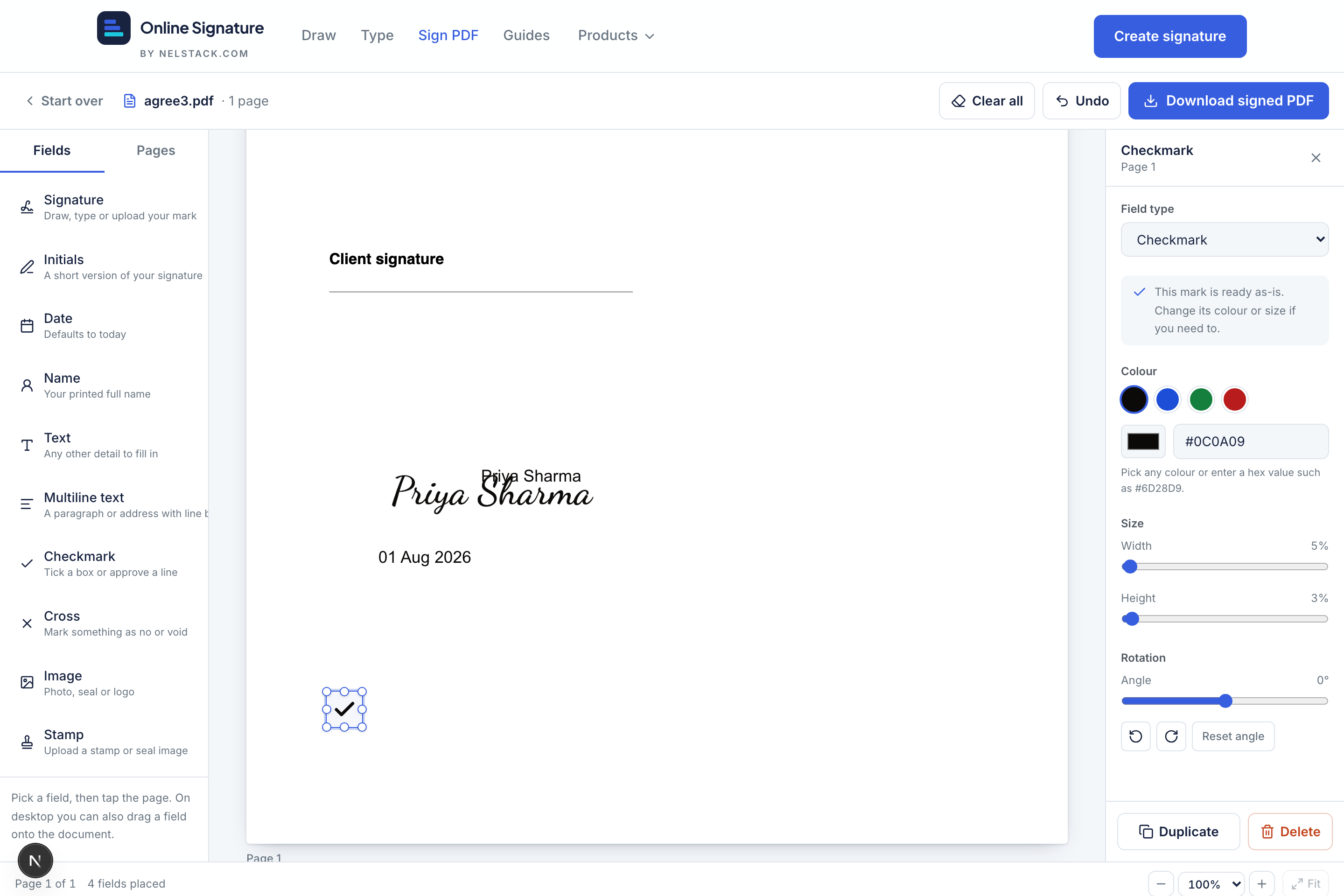
Placing fields
- Click to arm, click to place — select a type in the Fields sidebar, then click the page.
- Drag and drop — drag a field type from the sidebar onto the page for one-step placement.
- Pages tab — jump between pages; badges show how many fields each page already has.
Select, move and resize
- 1
Select
Click a field to select it. Handles and the properties panel appear. Click elsewhere or press Esc to deselect.
- 2
Move
Drag the field body. It stays within the page bounds.
- 3
Resize
Use any of the eight handles (corners and edges). Or set exact width/height percentages in the properties panel.
Rotate
Open Rotation in the properties panel. Drag the slider for fine angles, use ±90° for quarter turns, or Reset angle to 0°. Preview rotation matches the flattened PDF.
Keyboard and editing
Shortcuts
- Arrow keys
- Nudge selected field (Shift = larger step)
- Delete / Backspace
- Remove selected field
- Ctrl/Cmd + Z
- Undo (history up to 50 steps)
- Esc
- Cancel armed type, or deselect
- Type (empty text)
- Name / Text / Multiline start editing on first key
- Enter / double-click
- Edit text that already has a value; double-click images to recapture
Zoom and workspace tools
Zoom presets run from 50% to 200%, with ± controls and Fit. Use Start over to abandon the document, Clear all (with confirm) to remove every field, and Undo for the last change. An incomplete-fields banner appears if Download is blocked.
Duplicate for repeated initials
Place and style one Initials field, then Duplicate and drag copies onto other pages — faster than capturing again each time.
Frequently asked questions
How do I deselect a field to preview the final look?
Click empty page space or press Esc. Selection chrome hides so the page looks like the downloaded PDF.
What are the keyboard shortcuts?
Arrow keys nudge (Shift = larger step). Delete/Backspace removes the selected field. Ctrl/Cmd+Z undoes. Esc cancels an armed field type or deselects. Type into empty Name/Text/Multiline when selected; Enter or double-click to edit filled text.
Can I rotate any field?
Yes. All field types support rotation (−180° to 180°) from the properties panel, including ±90° buttons and Reset angle.
How do I keep a signature the same size across pages?
Set width and height percentages in the properties panel, then Duplicate the field. Copies keep size, rotation and colour so placement stays consistent.
Why does Download say fields are incomplete?
Signature and initials need a captured image; Name, Text, Multiline and Date need a value. Fill every placed field, or delete unused ones, then try Download again.
Keep learning
- How to sign a PDF online free — complete Sign PDF walkthroughSign a PDF in your browser: upload (up to 15 MB), place signature and fields, capture your mark, download a flattened PDF. Private, free, no signup.
- Sign PDF field types explained (with examples)Documentation for every Sign PDF field: signature, initials, date, name, text, multiline, checkmark, cross, image and stamp — sizes, fonts, colour and examples.
- Capture a signature for PDF: type, draw, upload and saved marksHow the Sign PDF capture modal works: type with 14 fonts, draw on a pad, upload PNG/JPG, and reuse up to six saved signatures stored on your device.